Enough Without a Key
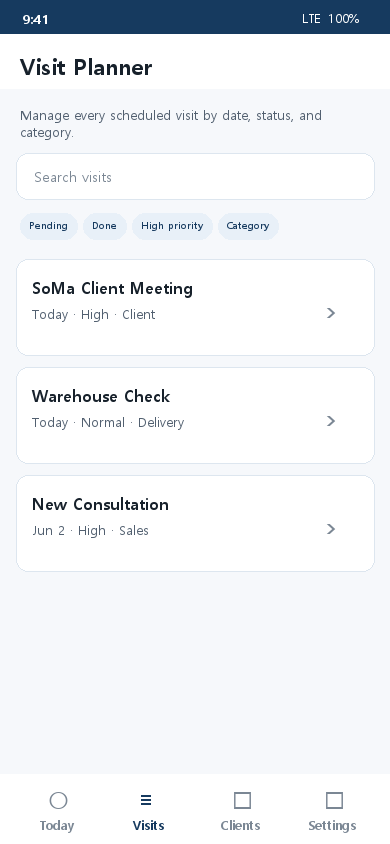
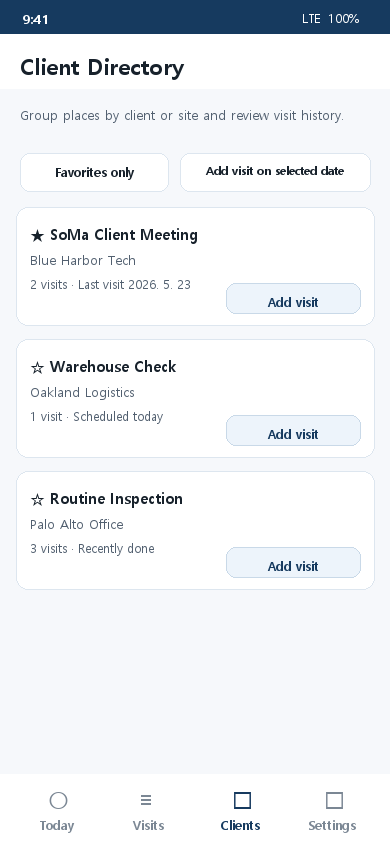
You can still manage visit schedules, customers, notes, and basic location information without an API key.
 WorkGo
Field Visit Planner
WorkGo is useful even without an API key for visit schedules and customer records. Connect a Google Maps API key when you want a smoother map experience: address search, markers, in-app maps, and distance-based visit planning.
Monthly No-Cost Usage
According to Google Maps Platform pricing, the main Essentials APIs used by WorkGo include 10,000 monthly no-cost calls. WorkGo only geocodes when needed, such as when you save or edit an address, so typical personal visit management can start with very little burden.
Check Google pricingWhy API Key?
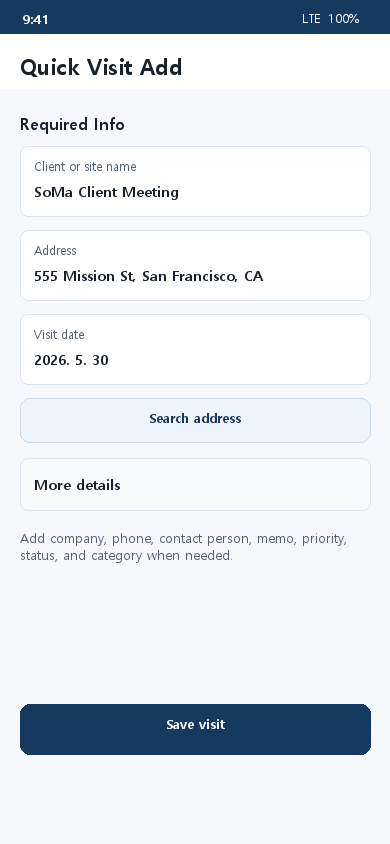
Visit registration, scheduling, customer lists, and notes are useful on their own. With an API key, WorkGo can find addresses faster, show places on a live map, and let you manage field visits through a familiar map interface.
You can still manage visit schedules, customers, notes, and basic location information without an API key.
Connect a key to use Google Maps search results for faster place entry and coordinate saving.
See today's visit places as markers inside WorkGo and make route decisions more easily.
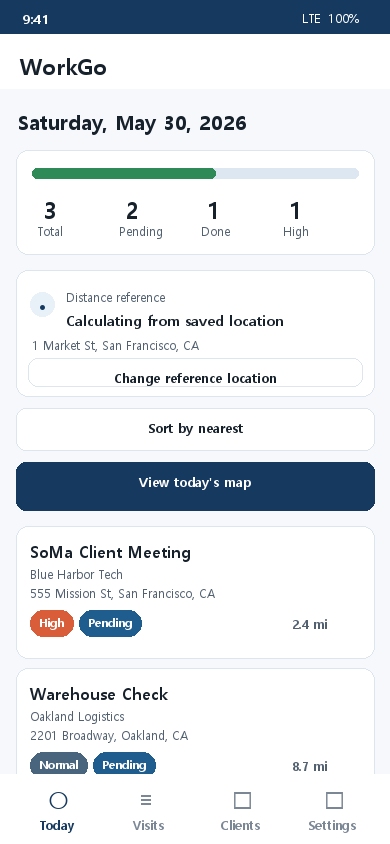
Check visit distances from your current or selected reference location.
Setup Guide
These steps focus on the actual Google Cloud menu path. Labels may vary slightly by account state or language, but the setup flow is the same.
Sign in with your Google account, open the project selector at the top, and create a New Project. A simple name like WorkGo is enough.
Open Cloud ConsoleOpen Billing from the left menu and link a billing account to the project. Google Maps Platform API keys generally require billing, even if you stay within no-cost usage.
Open APIs & Services, then choose Library. Search for each API name in the search box.
Open Maps JavaScript API, Geocoding API, and Places API, then press Enable for each one.
Go to APIs & Services and Credentials. Click Create Credentials, choose API key, and copy the generated key.
Open the generated key. Under API restrictions, select only the APIs you enabled: Maps JavaScript API, Geocoding API, and Places API.
In Billing, open Budgets & alerts and add a low budget alert so you can notice usage changes early.
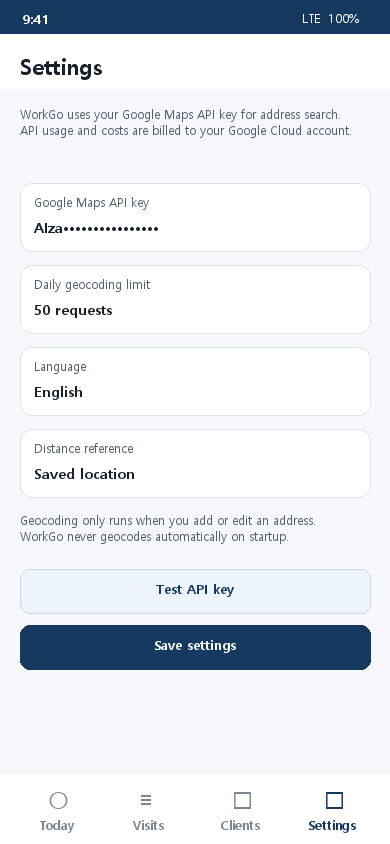
Return to WorkGo Settings, paste the key, and tap Test API Key. Once the success message appears, map features are ready.
Inside WorkGo
The main Essentials APIs include 10,000 monthly no-cost calls. WorkGo only geocodes when needed, such as when adding or editing addresses, so personal visit management can start comfortably within that range. Pricing policies follow Google, so setting budget alerts is still recommended.
Workflow
Cost & Security
The main Essentials APIs used by WorkGo start with 10,000 no-cost calls per month, which is usually hard to exceed for personal workflows.
Set a daily geocoding limit in WorkGo to reduce accidental high-volume lookups in the field.
If you need to rotate or stop using a key, replace it or remove it from WorkGo Settings.
Your Google Maps API key, usage, billing, and restrictions are managed in your own Google Cloud account. WorkGo helps you enter and test the key, but Google Cloud pricing and policy decisions remain with Google.
FAQ
Yes. Most core features, including visit schedules, customer records, notes, and status management, work without an API key. Basic geocoding may still provide some address and location information.
An API key is more about convenience than unlocking the whole app. It enables Google Maps-based address search, in-app maps, live markers, and distance display through a familiar map UI.
For organizing schedules, customers, and visit records, the basic features are honestly enough. Add an API key when you want to see places on a map or enter addresses faster.
WorkGo recommends enabling Maps JavaScript API, Geocoding API, and Places API.
Based on the official pricing table, the main Essentials APIs include 10,000 monthly no-cost calls. WorkGo mainly looks up places when you add or edit visits, so personal use can start with a comfortable margin. Google may change pricing, so budget alerts are recommended.
Check that the key was copied correctly, the required APIs are enabled, billing is linked, and API restrictions are not too narrow.
Set budget alerts in Google Cloud Console and set a realistic daily geocoding limit inside WorkGo.
Ready Check
Paste the key in Settings, tap Test API Key, and confirm that address search responds correctly. Once it passes, your map-based workflow is ready.
Review app setup